
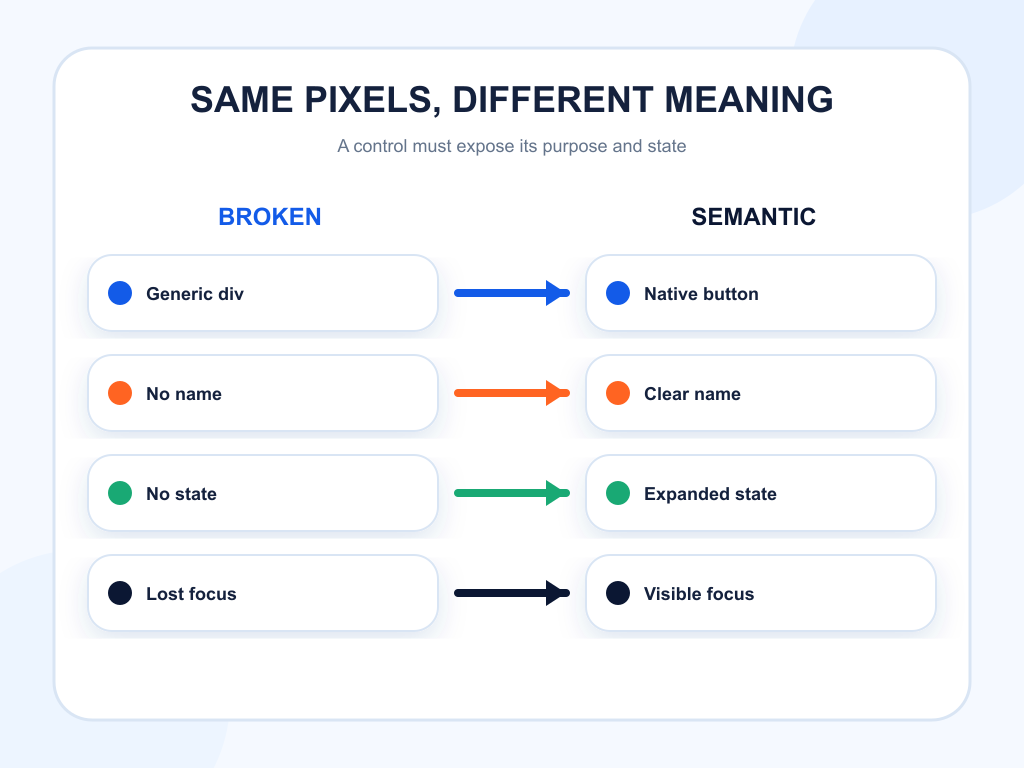
Two controls can look identical and behave very differently to software. One is a native button with a clear name, disabled state, keyboard focus, and predictable activation. The other is a styled container that happens to react to a mouse click. A person using a pointer may not notice the difference. A screen reader, keyboard user, test framework, or browser agent often will. The accessibility tree turns parts of the interface into programmatic objects with roles, names, relationships, and state. Understanding that layer helps teams build pages that are easier to operate, while avoiding the false claim that every AI agent reads the tree in the same way.
The Accessibility Tree Is a Programmatic UI Model
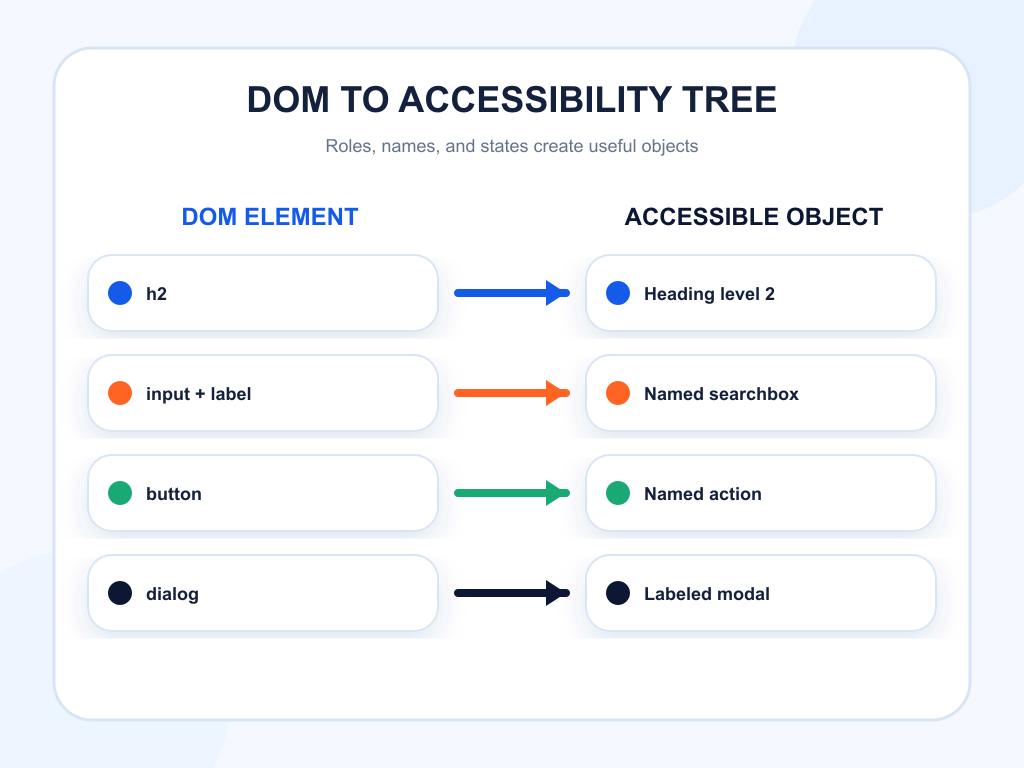
The W3C WAI-ARIA specification defines the accessibility tree as a structure of accessible objects representing a user interface. Browsers derive it from native HTML semantics, ARIA attributes, element state, relationships, and rendering conditions.
The tree is parallel to the DOM, not a copy of it. Decorative or hidden elements may be excluded. One DOM element can contribute an accessible object with a role, name, description, value, and state. Relationships such as labels and controls can connect objects that are not adjacent in the markup.
Assistive technologies use this model. Some browser automation and agent harnesses also expose semantic or accessibility-derived views because they provide cleaner targets than raw coordinates. Other agents operate visually or through DOM libraries. Treat the tree as an important interoperability layer, not a universal agent API.
Roles Tell Software What an Object Is
A role identifies the type of object: button, link, heading, textbox, checkbox, dialog, navigation region, or another defined concept. Native HTML supplies many roles automatically. A <button> becomes a button. An <a href> becomes a link. An <h2> becomes a heading with a level.
Custom widgets need correct semantics and behavior. Adding role="button" to a div does not automatically provide keyboard activation, focus management, disabled behavior, or form integration. The implementation must reproduce everything the native button already knows how to do.
Start with the native element. Add ARIA only when native HTML cannot express the pattern.
Names Let an Agent Choose the Right Target
The accessible name distinguishes one control from another. It can come from visible text, a label element, aria-labelledby, aria-label, or other defined sources. The name should match the purpose a user sees.
Icon-only controls are common failure points. A magnifying-glass icon may look like search to a person, but without an accessible name it can appear as an unnamed button. Repeated “Learn more” links can also be ambiguous when their context is not exposed.
| Visible element | Useful role and name | Likely task | Common failure |
|---|---|---|---|
| Search input | Searchbox, “Search documentation” | Enter a query | Placeholder used as the only label |
| Pricing toggle | Switch, “Annual billing,” checked state | Change billing view | State shown only by color |
| Modal close icon | Button, “Close pricing dialog” | Exit overlay | Unnamed SVG click target |
| Plan CTA | Link or button, “Start Standard plan” | Begin signup | Every card says only “Choose” |
| Expandable FAQ | Button with expanded state | Reveal answer | Heading is clickable but has no role |
Names should remain stable during interaction. A loading state can add status text without replacing the original action with an unrelated identifier.
States Explain What Is Happening Now
Roles describe what an object is. States describe its current condition. Expanded, selected, checked, disabled, invalid, busy, and pressed values help software understand what changed after an action.
Use native properties where possible. A disabled button should use the actual disabled attribute. A checkbox should expose its checked state. Custom disclosure controls should update aria-expanded and manage the controlled region consistently.
Do not rely on color, animation, or position alone. If a filter chip turns blue when selected but exposes no state, visual and programmatic views disagree. That mismatch creates verification failures for agents and comprehension failures for users.
Landmarks and Headings Create Navigable Structure
Landmarks identify major regions such as main content, navigation, search, complementary content, and forms. Headings create a hierarchy inside those regions. Together they let a user or tool jump to the relevant area without inspecting every node.
Use one clear <main> region. Label repeated navigation blocks. Nest headings logically rather than choosing levels for visual size. Give forms a descriptive name when they need to appear as landmarks.
The W3C semantic regions technique notes that modern browsers expose native sectioning elements without redundant roles. Prefer <main> to <div role="main"> when both are possible.
Focus Is the Cursor of Interaction
Keyboard focus identifies the object that will receive the next input. Agents that send keypresses also depend on predictable focus. Opening a dialog should move focus into it. Closing the dialog should return focus to a logical control. Removing the focused element without relocation creates an undefined interaction state.
Use a visible focus indicator. Avoid positive tabindex values that create surprising order. Composite widgets such as menus, tablists, listboxes, and grids require deliberate keyboard patterns defined in the ARIA Authoring Practices Guide.
When an action updates content, announce important status changes through an appropriate live region or move focus where the next decision occurs. Do not move focus unnecessarily, because unexpected jumps can disrupt both people and automation.
Hidden Content Can Disappear From the Tree
Elements removed with display:none, visibility:hidden, or the HTML hidden attribute are generally excluded from the accessibility tree. That is appropriate for content that is not available. Problems arise when an implementation visually reveals content but leaves it hidden programmatically, or hides it visually while it remains focusable.
Synchronize rendering, accessibility state, and focus. An expanded accordion should expose its answer and update the control’s expanded state. A closed modal should not leave interactive descendants in the tab order.
Test transitions, not only the initial page. Many semantic bugs appear after an update, validation error, route change, or async load.
Inspect the Tree and Test Tasks
Browser developer tools can inspect accessibility properties. Automated tests can query elements by role and accessible name. These checks expose duplicate names, missing labels, incorrect states, and controls that cannot be reached.
Add semantic assertions to component tests, then run end-to-end tasks. Confirm that the expected role and name remain available before and after state changes. Test at least one screen-reader path and keyboard-only path for every critical flow.
Browser-agent tests add another layer. Run the same task through visual automation and DOM or accessibility-aware automation. Compare failure points. If one mode succeeds and another fails, the disagreement can reveal a fragile interface assumption.
Measure Operability Separately From Visibility
Semantic HTML can improve task reliability and accessibility. It does not guarantee that an AI engine will cite the page. Visibility depends on retrieval, evidence, source trust, intent, and platform behavior.
Topify can monitor how the brand appears across AI answers and which sources support those answers. Product and accessibility tests should measure whether a referred user or agent can complete the next step. Keep these as separate stages: discovery, representation, interaction, and conversion.
When visibility rises but task completion falls, fix the interface. When task completion is strong but the brand is absent from answers, investigate content and source coverage. A joined funnel prevents one good metric from hiding a broken stage.
Treat the tree as a release artifact for critical components. When a design-system button, menu, dialog, combobox, or form field changes, inspect its accessible name, role, state, focus behavior, and relationship to surrounding content. Test both the default state and the states created by errors, expansion, selection, loading, and completion. A component that is correct only before interaction can still break an automated task halfway through. Recording these checks in the component acceptance criteria spreads the benefit across every page that reuses it.
Conclusion
The accessibility tree gives software a structured model of interface roles, names, states, relationships, and focus. Native semantic HTML produces the most dependable foundation, while ARIA fills gaps for genuinely custom patterns. Keep the visible interface and programmatic interface aligned, test transitions as well as initial state, and validate complete tasks with keyboard, accessibility, DOM, and visual tools. Do not promise that every AI agent uses the tree or that semantics guarantee citations. The practical benefit is narrower and more valuable: clearer interfaces are easier for people, assistive technologies, testing tools, and many browser-agent systems to operate reliably.
FAQ
What is an accessibility tree?
It is a browser-generated structure of accessible UI objects, including their roles, names, values, states, and relationships.
Is the accessibility tree the same as the DOM?
No. It is derived partly from the DOM but can exclude hidden or decorative elements and combine markup into accessible objects.
Do all AI agents use the accessibility tree?
No. Some work visually, some use DOM tools, and some receive semantic or accessibility information. Designing for agreement across channels is safer.
Should ARIA replace native HTML?
No. Use native elements when available. ARIA adds semantics but does not automatically provide the native element’s behavior.