

Most developers spend their first hour with Claude Code doing the wrong thing. They paste a snippet, get a response, and think: “This is just a fancier chatbot.” It’s not. That mental model is exactly what makes the first week frustrating.
Claude Code is a terminal-native agent. It lives in your project, reads your files, runs your tests, and executes shell commands. The faster you stop treating it like a chat interface, the faster it starts doing work that actually matters.
Here’s how to install it correctly, avoid the setup traps, and run your first task that’s worth running.
What Claude Code Actually Does (and What It Doesn’t)
Claude Code isn’t another autocomplete tool. It doesn’t suggest the next line of code while you type.
It’s designed for delegation. You hand it a task that spans multiple files, a decision that requires understanding your project’s architecture, and let it work. Its context window handles up to 1 million tokens, which means it can hold a large codebase in view simultaneously. That’s the core capability that separates it from IDE extensions like GitHub Copilot, which typically work within a 8k–32k token range focused on the current file.
The trade-off: because it operates via the terminal, there’s no visual IDE layer. You’re working with commands, not clicks.
| Dimension | IDE Extension (e.g., Copilot) | Claude Code |
|---|---|---|
| Interface | Inline ghost text / sidebar | Terminal CLI |
| Data access | Current file + open tabs | Full repository + local tools |
| Autonomy | Moderate (suggestions) | High (autonomous execution) |
| Context window | 8k–32k tokens | 1M tokens |
| Primary value | Autocomplete / boilerplate | Complex delegation / debugging |
Bottom line: if your task fits in one file, Copilot is probably faster. If it crosses multiple files, requires understanding patterns, or involves running commands, Claude Code is built for it.
Before You Install: 3 Things You Check First
Skipping this step is the #1 reason new users hit a wall on day one.
Node.js version. Claude Code requires Node.js 18.0.0 or higher. The recommended path is to install via Node Version Manager (NVM), not through a system package manager. Global npm installs often create permission errors that are tedious to debug later.
Operating system compatibility. macOS 13.0+ and Ubuntu 20.04+ / Debian 10+ work natively. Windows doesn’t. Claude Code relies on POSIX-compliant system calls, so Windows users need WSL2 (Windows Subsystem for Linux 2). Virtualization must be enabled in BIOS/UEFI for WSL2 to run properly. That’s a restart-and-check step that’s easy to forget.
API access. The CLI binary is free to install, but running it requires an active Anthropic account. A Claude Pro, Max, Team, or Enterprise plan works for individual use. For CI/CD pipelines or team-wide automation, a Console account with pre-paid credits gives better cost visibility.
One more check: minimum specs
| Component | Minimum | Recommended |
|---|---|---|
| RAM | 4 GB | 16 GB+ for large monorepos |
| Disk space | 2–4 GB | 10 GB+ if using WSL2 |
| Node.js | v18.0.0 | Latest LTS (v20+) |
Get these confirmed before touching the installer.
Installing Claude Code in Under 5 Minutes
macOS and Linux share a single installation path:
curl -fsSL https://claude.ai/install.sh | bash
This downloads the architecture-specific binary and places it in ~/.local/bin/. After installation, run claude --version to confirm it’s recognized.
If the shell returns “command not found,” the issue is almost always a PATH problem. Run:
echo 'export PATH="$HOME/.local/bin:$PATH"' >> ~/.zshrc
source ~/.zshrc
The built-in diagnostic tool claude doctor identifies configuration gaps automatically. That’s your first stop if anything feels off.
Windows via WSL2 is a multi-step process:
- Open PowerShell as Administrator and run
wsl --install, then restart. - After restart, open your WSL terminal (Ubuntu is the default distro).
- Inside WSL, install Node.js and Git independently. Your Windows-side installations don’t carry over.
- Run the same
curlinstaller from inside the WSL terminal.
One detail that matters for performance: clone your projects into the WSL-native filesystem (~/projects/), not the Windows mount (/mnt/c/). File I/O across the mount is significantly slower, which affects how fast Claude Code scans your repository.
Verify your installation:
claude --version
claude doctor
Both should return clean output. If claude doctor flags anything, fix it before moving on. Starting with a broken setup makes everything harder to debug later.
Your First Real Task: Don’t Start with “Hello World”
Toy examples don’t demonstrate what Claude Code actually does. “Write a function that adds two numbers” tells you nothing about whether the agent understands your codebase.
Start with something real.
Three task types consistently show the tool’s core capability:
Scenario A: Add an API endpoint Prompt: “Add a new GET endpoint to the analytics module that returns daily active users. Follow the pattern used in the users module. Write a corresponding integration test.”
Claude Code will find your existing controller patterns, match your database abstraction layer, implement the route, and run the test suite to verify. It’s not generating isolated code. It’s reading your conventions and matching them.
Scenario B: Systemic refactor Prompt: “Refactor the callback-based authentication middleware in /auth to use async/await. Update all call sites.”
The agent performs a search across the full project, applies the change everywhere, and runs a build check. A task that’s typically high-risk for manual developers, done with a single prompt.
Scenario C: Error triage from a log
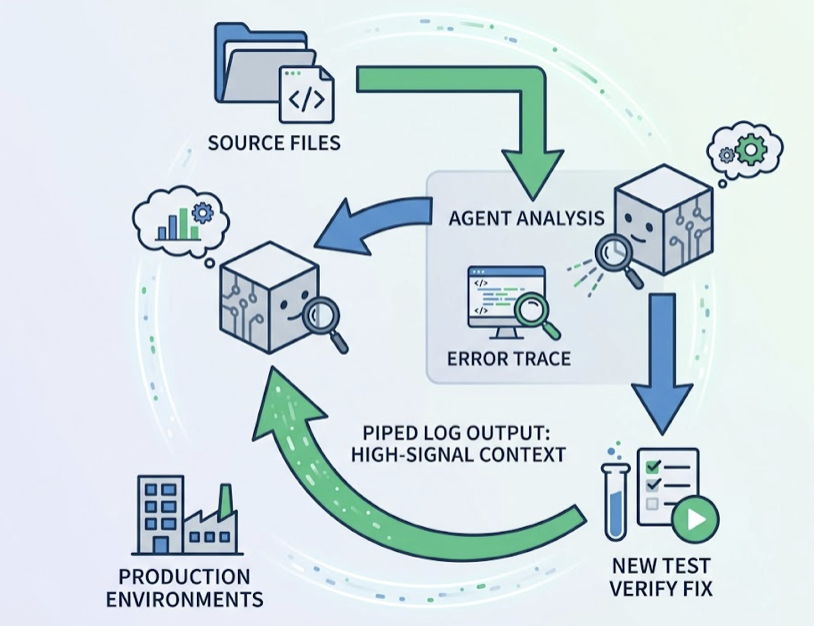
cat error.log | claude "Locate this bug, write a reproduction test, and implement a fix."
By piping the log directly, you give the agent high-signal context. It traces the error through source files and verifies the fix with the new test. That closed loop—where the agent sees the output of its own changes—is the core behavior that makes it useful in production environments.
Write prompts with clear success criteria
Generic prompts produce generic results. The difference:
| Standard prompt | Optimized prompt |
|---|---|
| “Fix the auth bug.” | “Locate the session timeout issue in src/auth/session.ts. Check for race conditions.” |
| “Check if it works.” | “Write a failing Jest test, fix the code, and run only that test to confirm.” |
| “Refactor it.” | “Refactor for readability without changing the public API or adding new dependencies.” |
You’re not chatting with Claude Code. You’re delegating to it. The prompt is the job spec.
5 Mistakes Beginners Make in the First Week
These aren’t edge cases. Nearly every new user hits at least three of them.
1. Giving it too much context at once. Dumping your entire codebase into a single session without a .claudeignore file means the agent spends tokens on node_modules, build artifacts, and test fixtures. Excluding irrelevant directories can cut context consumption by over 90% in large repos.
2. Skipping context cleanup between tasks. AI context works best when it’s fresh and scoped. Use /clear between unrelated tasks, or /compact to generate a session summary before continuing. Don’t carry over stale context from a debugging session into a new feature build.
3. Not reviewing the diff before accepting changes. Claude Code can modify multiple files in a single operation. Use Plan Mode (Shift+Tab) to let the agent explore and propose a plan without making changes. Review the plan, then execute.
4. Working in the wrong directory. On Windows/WSL, this is especially common. If you’re running Claude Code from /mnt/c/, file scanning is slow and unreliable. Always work from the WSL-native path.
5. Ignoring silent fake success. Agentic tools sometimes implement solutions that appear to work but contain hidden fallbacks or hardcoded values. Set a “Fail Loud” philosophy in your CLAUDE.md project file: the agent should surface errors with full stack traces rather than failing silently. A crashed system with a clear error is more valuable than a degraded one with no signal.
Where Claude Code Fits in Your Actual Workflow
After the first week, the question shifts from “how do I use this” to “where does this actually save time.”
The honest answer: Claude Code earns its place in tasks that require codebase-wide reasoning. Single-file autocomplete, simple boilerplate, quick syntax lookups—other tools handle those faster. But multi-file refactors, cross-cutting debugging, and automated test generation are where the 1M-token context window pays off.
As developer workflows become more agent-driven, a parallel challenge emerges: if your product or API is being recommended by AI tools like Claude Code, you need to know how it’s being described and whether that description is accurate. That’s where AI visibility tracking comes in.
Topify is a platform built specifically for this. It tracks how brands, libraries, and developer tools appear across AI systems like ChatGPT, Gemini, and Perplexity. For teams building APIs or developer products, Topify’s Source Analysis identifies which domains AI systems are citing as references, and Sentiment Analysis tracks whether the tool is being described accurately or with outdated information.
The practical application: if Topify detects that Claude Code is recommending a deprecated version of your API, your team can use Claude Code itself to update the documentation schema, which then feeds back into how AI systems reference your product. It closes the loop between building and being discovered.
Conclusion
Getting Claude Code running is the easy part. Getting value from it depends on three habits that take a week to build: checking your environment before installation, starting with real tasks that require codebase reasoning, and managing context aggressively with .claudeignore and session pruning.
The tool rewards developers who treat it like a capable junior engineer. Give it a specific task, clear success criteria, and the permission to run commands. Then review what it did.
That’s the entire model. Everything else is practice.
FAQ
Is Claude Code free to use?
The CLI binary itself is open-source, but usage requires an active Anthropic account. Claude Pro, Max, Team, and Enterprise plans all work for interactive use. For automated tasks or CI/CD pipelines, a Console account with pre-paid API credits is typically more cost-effective.
Does Claude Code work offline?
No. The filesystem interactions and command execution happen locally, but the reasoning runs on Anthropic’s servers. An internet connection is required for every session.
How is Claude Code different from GitHub Copilot?
Copilot is an IDE extension focused on inline autocomplete. Claude Code is a terminal agent designed to work across an entire codebase. Copilot suggests lines; Claude Code can be tasked with finding a bug, writing a test, fixing it, and committing, all in one interaction.
Can non-developers use Claude Code?
Yes, with caveats. The natural-language interface makes it accessible to founders and product managers who want to build prototypes. But it’s a CLI tool, so basic familiarity with the terminal, Node.js, and Git is still required to get it running.
What does .claudeignore actually do?
It tells the agent which directories to skip during file scanning. Excluding node_modules, build outputs, and large data fixtures keeps the context window lean, improves reasoning speed, and reduces unnecessary API token usage.